Quickly Polish Selected Email Text on Mac With AI (2026)
Quickly polish selected email text on Mac with AI across 12 tools. Compare Apple Intelligence, Syneli, TextPolisher, and more. See picks for 2026.
TL;DR
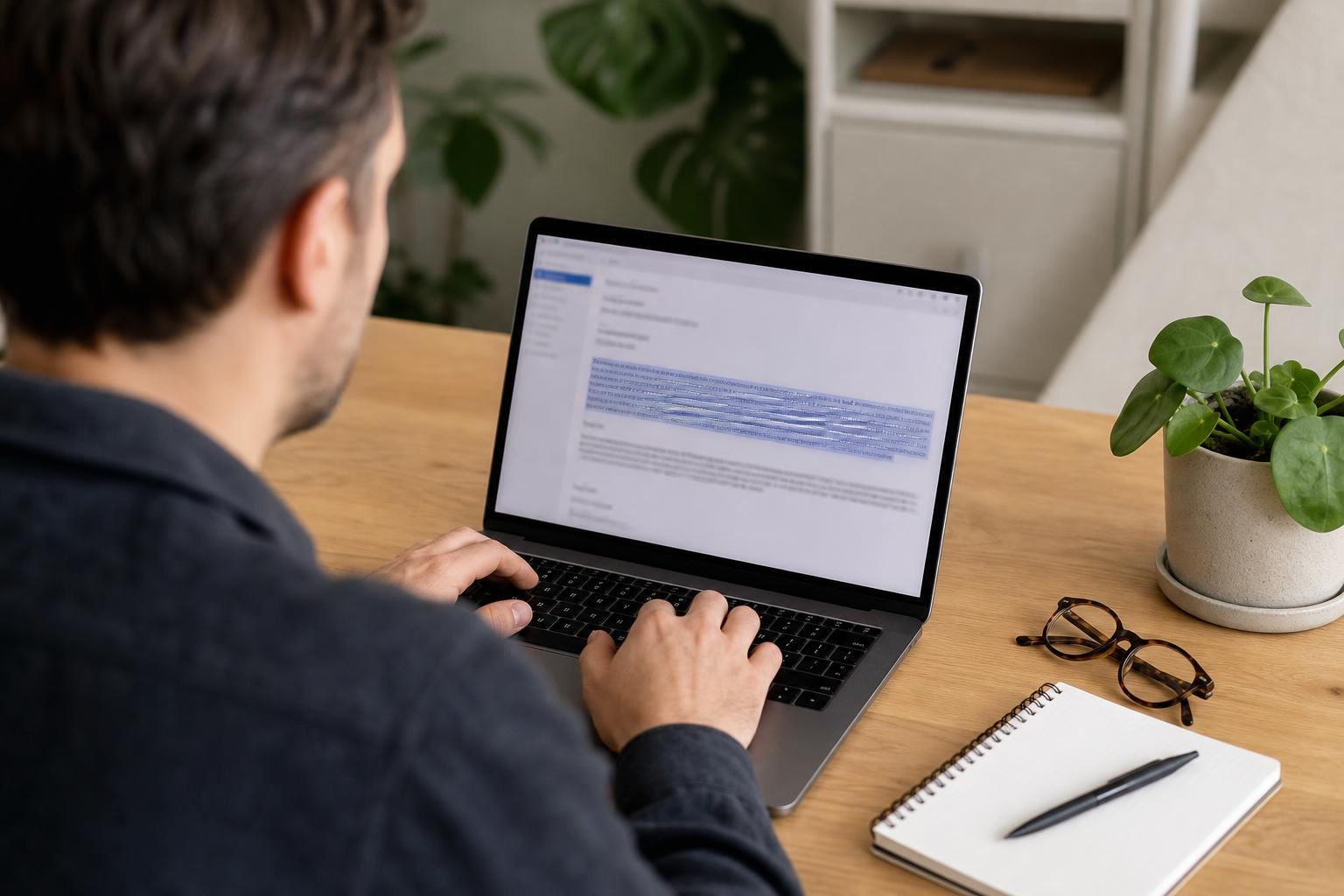
Copying email drafts into ChatGPT wastes roughly 20 minutes a day if you send 20 work emails. A better approach: highlight text, press a keyboard shortcut, and get polished prose back in place. This guide compares 12 ways to quickly polish selected email text on Mac with AI, from free built-in options like Apple Intelligence to dedicated tools like Syneli that combine dictation, translation, and one-shortcut rewriting across every Mac app.
The Problem: Why Copy-Pasting into ChatGPT Doesn’t Scale
You know the loop. Write a rough email, select the text, copy it, open ChatGPT in a browser tab, paste it with a prompt like “make this professional,” wait for the response, copy the output, switch back to your email, paste it in. One email takes about 60 seconds of overhead. That math adds up: Clico’s product page estimates that 20 daily work emails cost roughly 20 minutes in round-trip time alone.
The real cost isn’t just minutes. It’s broken flow. Every context switch pulls you out of the email you were composing. You risk pasting into the wrong window, losing clipboard contents, or accidentally sending a half-polished draft. What most Mac users actually want is simpler: highlight the rough text, press a shortcut, and have the polished version appear right where they’re typing.
That “select, shortcut, done” workflow is exactly what this article covers. If you also dictate emails (speaking a rough draft and then cleaning it up), you can rewrite selected text in place without ever leaving your email app.
At-a-Glance Comparison Table
Tool | Starting Price | Shortcut Activation | System-Wide? | Translation? | Dictation? | Privacy Model |
|---|---|---|---|---|---|---|
Syneli | Free (10 AI/day) | Right Command | ✅ | ✅ | ✅ | Local core + optional cloud AI |
Apple Intelligence | Free | Right-click menu | ✅ (Apple apps) | ❌ | ❌ | On-device |
Gmail Polish | Workspace + Gemini add-on | Ctrl+H | ❌ (Gmail only) | ❌ | ❌ | Cloud (Google) |
WordPolish.ai | Free | Custom shortcut | ✅ | ❌ | ❌ | Cloud |
TextPolisher | Free | Custom shortcut | ✅ | ❌ | ❌ | Fully on-device |
PolishText.io | $0.99/mo | ⌘⇧Space | ✅ | ❌ | ❌ | Cloud |
Scraib | $3.99/mo or $10 one-time | Ctrl+R | ✅ | ❌ | ❌ | BYOK / local via Ollama |
RewordIt | BYOK (pay-per-use) | Custom hotkeys | ✅ | ✅ (via prompt) | ❌ | BYOK / local via Ollama |
Clico | Free | ⌘O | ❌ (Browser only) | ❌ | ❌ | Cloud |
Wordwand | Free tier; $10.99/mo Pro | Custom shortcut | ✅ | ✅ | ✅ | Cloud |
RewriteBar | Free tier; $29 one-time | Menu bar | ✅ | ✅ | ❌ | BYOK / local via Ollama |
WunderType | $8.99 one-time | ⌘⇧G | ✅ | ❌ | ❌ | Cloud |
12 Ways to Quickly Polish Selected Email Text on Mac with AI
1. Syneli
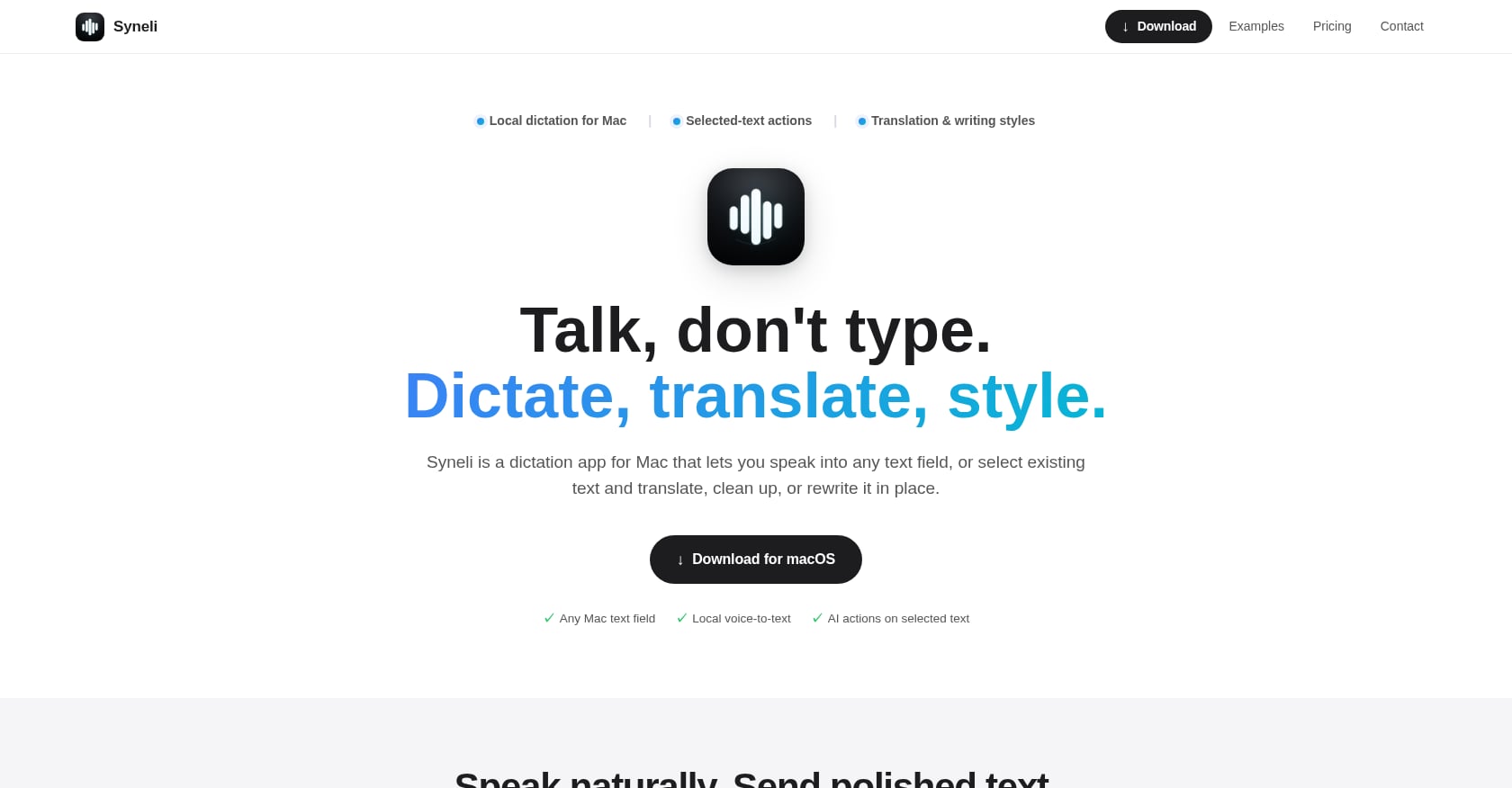
Best for: Mac users who dictate emails and need polish plus translation in one app.
Syneli lets you select existing text in any Mac text field, press a keyboard shortcut, and get a rewritten version inserted right where you are. It also handles dictation: place your cursor, hold a key, speak naturally, and Syneli types what you said. Core dictation runs locally on your Mac, so it works offline and stays private.
Pricing:
Free tier: local dictation + 10 AI actions per day
Syneli Pro: $9.99/mo for unlimited dictation, AI translation, and styling
Key features:
Right Command for cleanup, Right Command + Right Option for “Professional” tone, Right Option for translate
Dictate a rough draft, then polish it in place without switching apps
Translate selected text between languages before or after dictation
Works in Mail, Slack, browsers, IDEs, Notes, and every other Mac text field
Tradeoffs:
Mac-only, no Windows or iOS version
AI translation and styling features use cloud processing (core dictation stays local)
New product with limited public user reviews
The dictate-then-polish workflow is something no other tool on this list replicates in a single app. You speak a messy first draft, then hit one shortcut to clean it into professional email prose. For multilingual professionals, the translate-before-insertion feature eliminates the extra step of running text through a separate translation tool. If you want to explore how selected-text actions work across your Mac, there’s a detailed walkthrough of that feature.
2. Apple Intelligence Writing Tools

Best for: Apple Silicon Mac owners who want free, built-in email polishing with zero setup.
Apple Intelligence Writing Tools are baked into macOS Sequoia 15.1 and later. You select text, Control-click, choose “Show Writing Tools,” and pick a tone: Friendly, Professional, or Concise. It also proofreads and summarizes.
Pricing: Free, included with macOS.
Key features:
Three tone presets: Friendly, Professional, Concise
Proofreading and summarization
Works in Apple Mail, Notes, and most native apps
Tradeoffs:
Requires Apple Silicon; Intel Macs are not supported
No dedicated keyboard shortcut, you must right-click or use the toolbar
Limited to three tone presets with no customization
No translation, no dictation integration
Can remove contextual information during rewrites, as noted by Intego’s security blog
For occasional email polishing, Apple Intelligence is fine. But if you process dozens of emails daily, the right-click menu becomes a bottleneck. That’s why tools like TextPolisher (covered below) exist to wrap a single hotkey around Apple’s on-device AI.
3. Gmail Polish Shortcut
Best for: Google Workspace users who never leave Gmail in the browser.
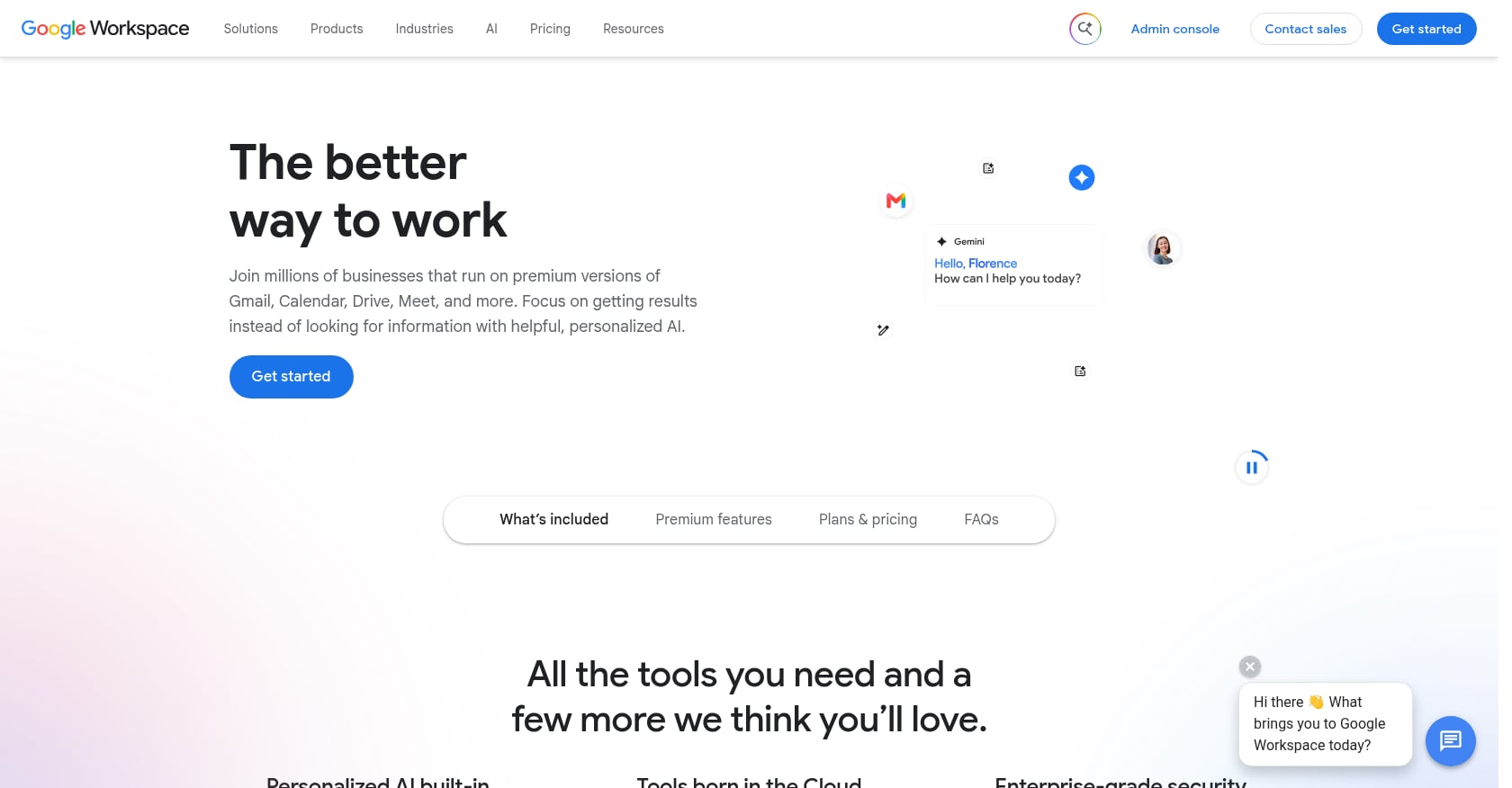
Google rebranded its “Refine my draft” feature to “Polish.” Type a draft with more than 12 words, and a polish shortcut appears. You can also press Ctrl+H to trigger it. Refinement options include Formalize, Elaborate, and Shorten.
Pricing: Requires Google Workspace with Gemini Business, Enterprise, or Education add-on. Not available on personal Gmail accounts.
Key features:
One-click polish inside Gmail compose window
Three refinement chips: Formalize, Elaborate, Shorten
No installation needed
Tradeoffs:
Gmail-only, useless in Apple Mail, Outlook desktop, or any other app
Locked behind Workspace pricing, which most individuals don’t pay for
Cannot be disabled by the user, it’s on by default with no admin toggle
Practitioners on Reddit’s r/Gmail describe the output as “gibberish” and “off topic,” or rewritten in a voice that doesn’t sound like them
If you’re a Workspace customer already, Gmail Polish is convenient. Everyone else needs a different approach to quickly polish selected email text on Mac with AI.
4. WordPolish.ai
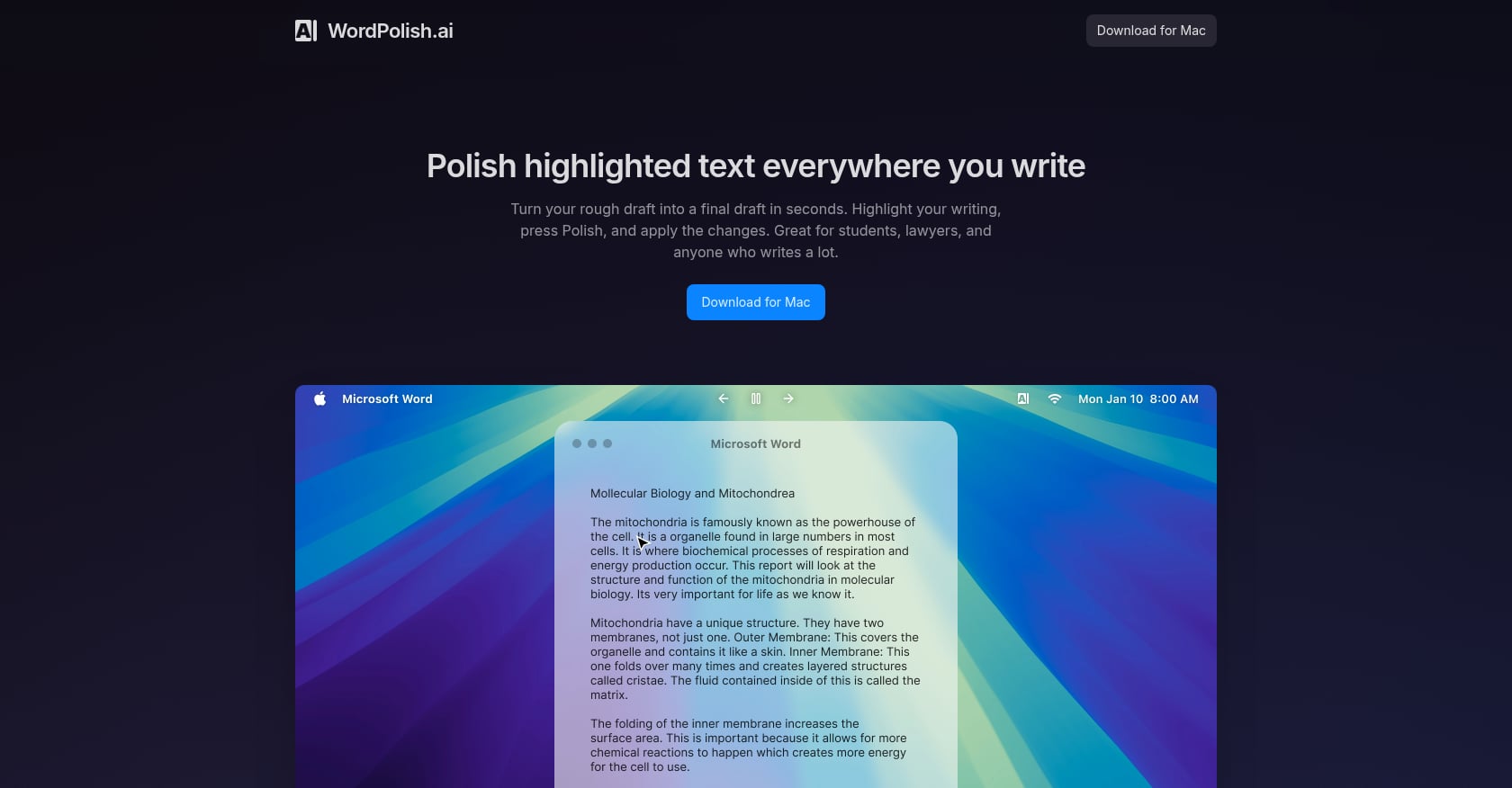
Best for: Students and light users who want a free, system-wide polisher with no account required.
WordPolish uses native macOS accessibility features to read your selected text and surrounding context, then polishes it in place. It works in Gmail, Word, and other apps.
Pricing: Free, no account needed.
Key features:
System-wide, works wherever you type on Mac
Only processes the specific text you highlight (no keystroke logging)
Privacy-conscious design
Tradeoffs:
No dictation feature
No translation
Newer tool with limited public reviews and unclear long-term sustainability
Lacks tone preset options beyond basic polishing
5. TextPolisher
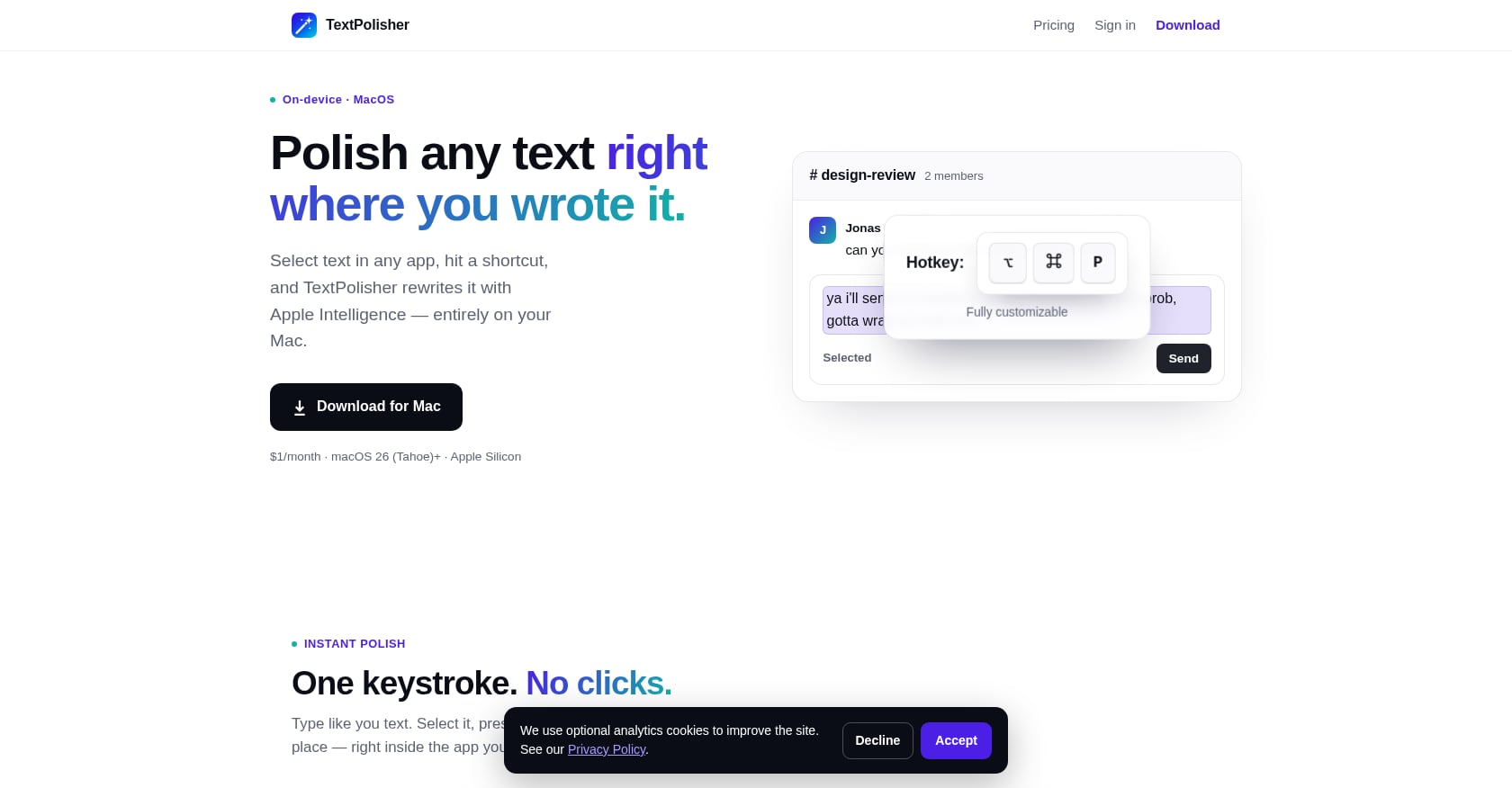
Best for: Privacy-focused users on Apple Silicon who want free, completely on-device polish.
TextPolisher wraps Apple Intelligence behind a customizable keyboard shortcut. Select text in any app, press the shortcut, and get a rewrite that never touches the internet.
Pricing: Completely free. No API keys, no subscriptions.
Key features:
Fix Grammar, Professional, Friendly, or Concise modes
Works in Slack, Mail, Notes, browsers, IDEs
Entirely on-device processing
Tradeoffs:
Requires Apple Intelligence (Apple Silicon Macs only, same limitation as Apple’s built-in tools)
Limited to Apple’s on-device model quality, which isn’t as strong as cloud-based models
No translation, no dictation
TextPolisher solves the biggest complaint about Apple Intelligence: the lack of a fast keyboard shortcut. If you already have an Apple Silicon Mac and want zero cost, this is the simplest path.
6. PolishText.io
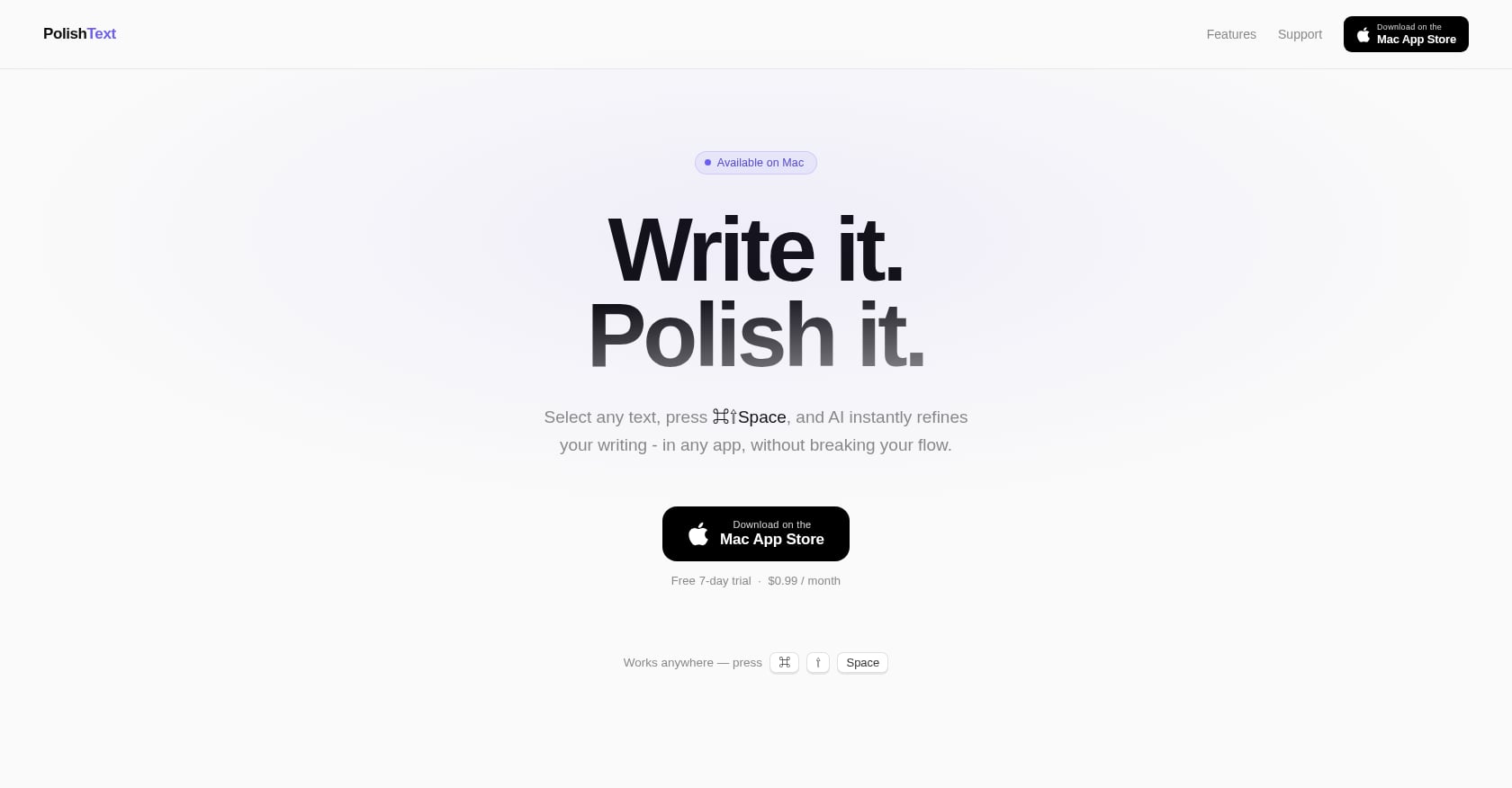
Best for: Budget-conscious Mac users who want the cheapest subscription polish tool.
Select any text, press ⌘⇧Space, and AI refines your writing in place. That’s the entire pitch.
Pricing: Free 7-day trial, then $0.99/month.
Key features:
System-wide, works in any Mac app
One keyboard shortcut to trigger
Minimal UI that stays out of your way
Tradeoffs:
Very new with minimal reviews
No dictation, no translation, no tone customization
Limited feature set compared to more mature alternatives
At under a dollar a month, it’s almost a throwaway experiment. Worth trying if you want basic polish without committing to a larger tool.
7. Scraib
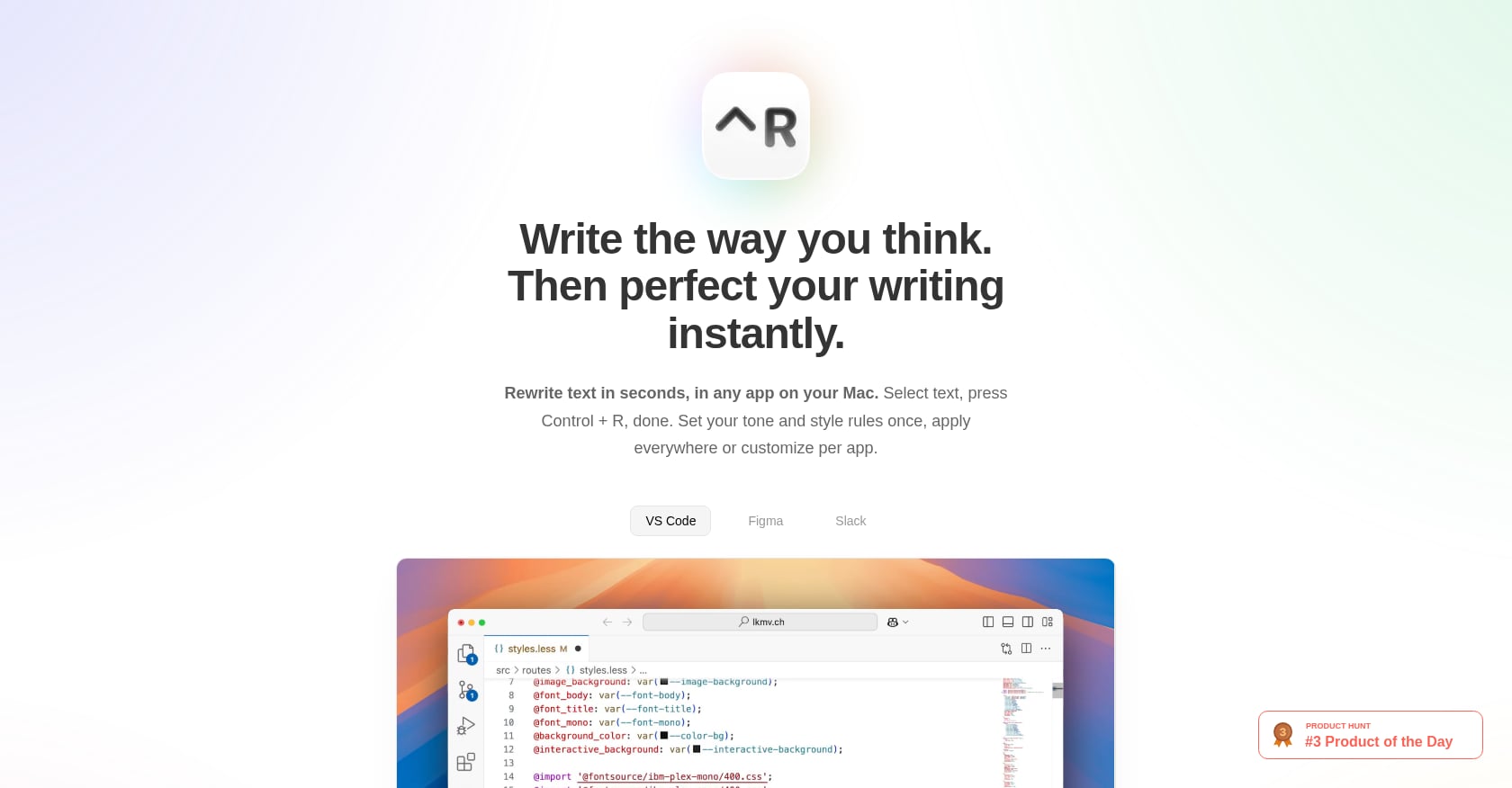
Best for: Non-native English speakers and developers who want custom rewriting rules.
Scraib lets you select text anywhere on your Mac, press Control+R, and get an instant rewrite with improved grammar, clarity, and style. What sets it apart is custom rule support: you can define per-app tone rules so your rewrites in email differ from your rewrites in Slack.
Pricing: 7-day free trial, then $3.99/month or $10 one-time purchase with your own API keys.
Key features:
Custom rewriting rules per app
BYOK (bring your own key) for ChatGPT, Claude, Gemini, Ollama, OpenRouter
Run locally via Ollama for complete privacy
System-wide across all Mac apps
Tradeoffs:
No dictation feature
No built-in translation
Setup required for optimal custom rules
One user on Product Hunt captured why Scraib resonates: “I’m not a native speaker, so I need a tool that can improve my writing overall, not just fix mistakes. I just need something that will make me sound better without changing the intent.” That perspective speaks to a huge segment of professionals who need to polish email text on Mac with AI without losing their original meaning. For those users who also want a Grammarly alternative that’s shortcut-driven rather than browser-based, Scraib and Syneli both fit.
8. RewordIt
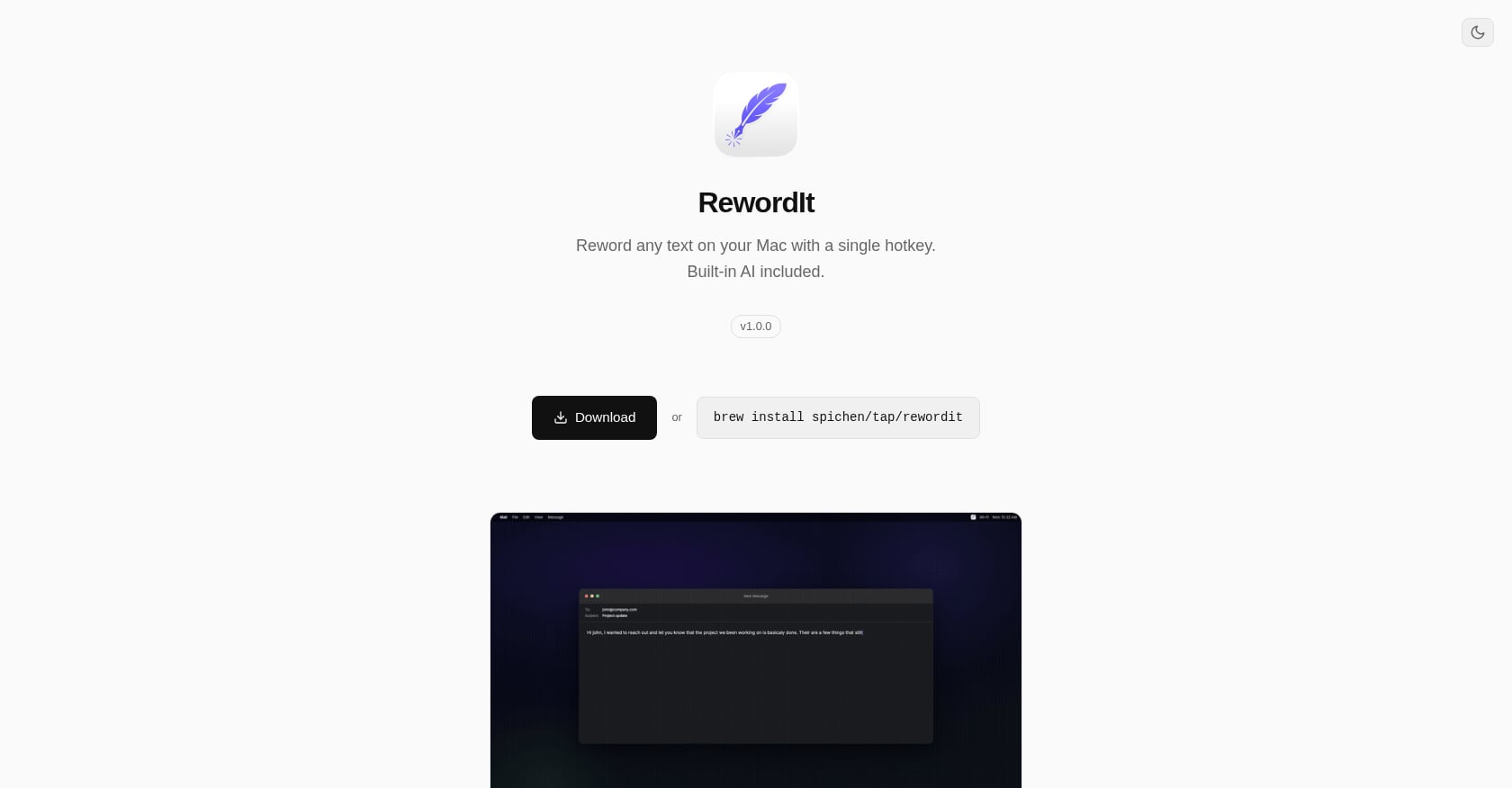
Best for: Power users who want multiple hotkey profiles for different rewriting styles.
RewordIt sits in the menu bar and lets you create multiple hotkey-plus-prompt combinations. One shortcut for “make professional,” another for “simplify,” a third for “translate to Spanish.” Each hotkey triggers a different rewriting profile.
Pricing: Built-in AI at less than $0.001 per rewrite, or bring your own API key. Ollama support for fully local processing.
Key features:
Multiple profiles with distinct hotkeys
Translation via custom prompt profiles
Private by default with Ollama (text never leaves your machine)
Works in any Mac app
Tradeoffs:
No dictation
Requires initial setup to configure profiles
Translation depends on prompt engineering rather than a dedicated feature
If you like tinkering and want granular control over how your text gets rewritten, RewordIt offers more flexibility than most tools here.
9. Clico

Best for: People who live in browser-based email (Gmail, Outlook web).
Clico is a browser extension. Highlight a draft, press ⌘O, and it cleans up tone, grammar, length, and structure. The team claims that polishing 20 emails takes about 40 seconds total versus 20 minutes with ChatGPT round-trips.
Pricing: Free.
Key features:
Works in Gmail and Outlook web
One-shortcut activation
Addresses tone, grammar, and structure in one pass
Tradeoffs:
Browser-only, completely useless in Apple Mail, Slack desktop, or any native Mac app
No dictation, no translation
Limited to email contexts
If your entire email workflow happens in a browser, Clico is fast and free. But anyone who uses Apple Mail or desktop email clients needs a system-wide tool to polish selected email text on Mac with AI.
10. Wordwand
Best for: Mac users who want one tool covering grammar, translation, dictation, and text-to-speech.
Wordwand puts AI writing tools behind a single keyboard shortcut. Select text, press the shortcut, and choose what to do: fix grammar, translate, rewrite, generate, dictate, or listen. It even adapts tone per app, going professional in emails and casual in Slack automatically.
Pricing: Free tier for light usage; $10.99/month for Pro.
Key features:
Per-app tone settings
Translation and dictation built in
Grammar correction, rewriting, and text generation
System-wide across Mac apps
Tradeoffs:
Higher monthly price than most alternatives ($10.99 vs. Syneli’s $9.99 or Scraib’s $3.99)
Broad feature set may be overkill for polish-only needs
Adds a selection step after the shortcut (choose action) rather than instant one-key polish
For users who want everything in one place and don’t mind the price, Wordwand is comprehensive. Those who prefer a Wispr Flow alternative with tighter dictation integration might find Syneli’s shortcut-first approach faster for daily email polishing.
11. RewriteBar
Best for: Users who prefer a one-time purchase with local AI support and translation.
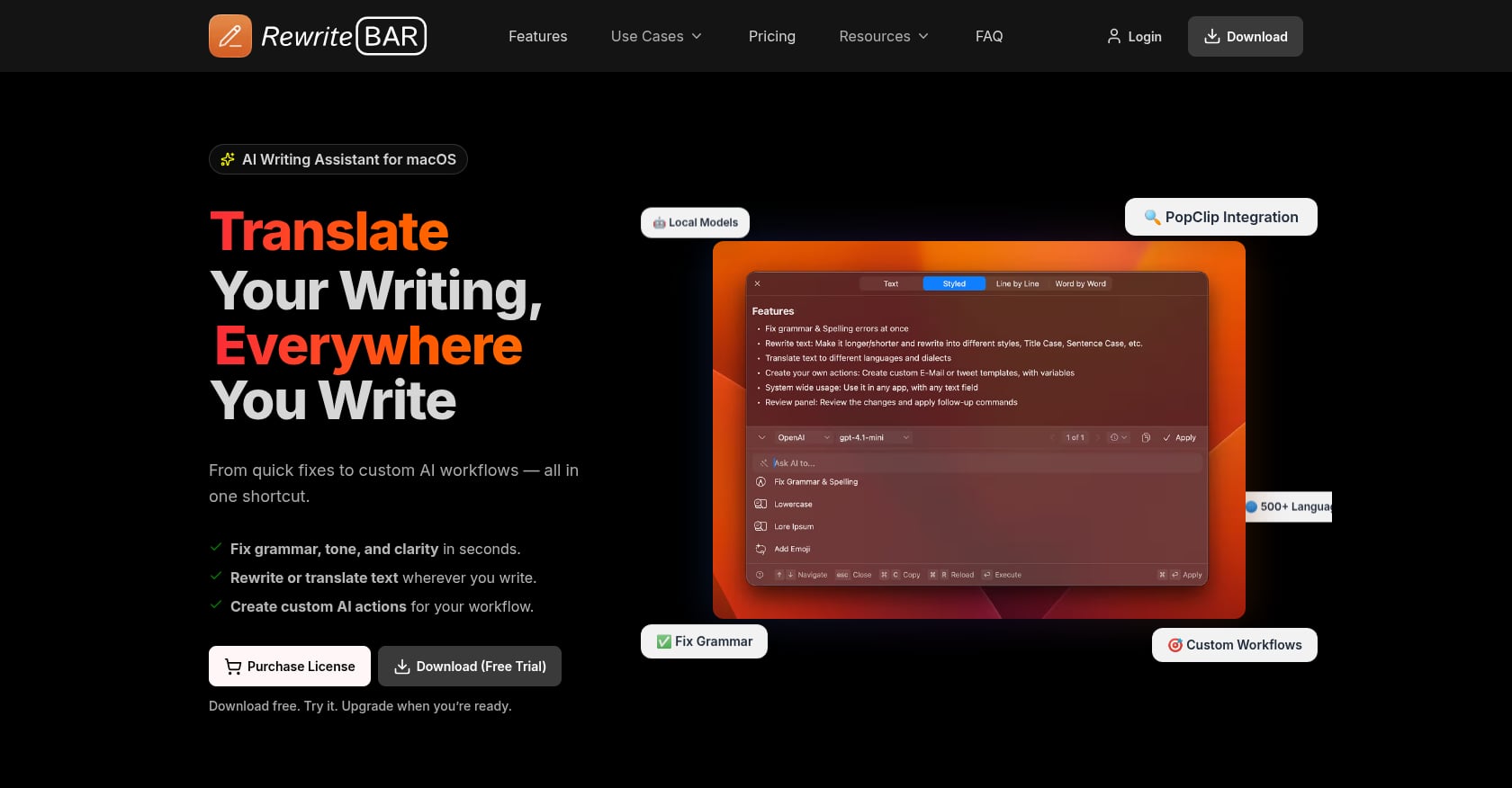
RewriteBar is a lightweight menu bar app that provides grammar correction, language simplification, tone adjustment, translation, summarization, and prompt enhancement. It supports local AI through Ollama integration.
Pricing: $29 one-time purchase, or $3 to $5/month subscription. Free version with limited functionality.
Key features:
Comprehensive writing tool suite (grammar, tone, translation, summary)
Local AI via Ollama for complete privacy
One-time purchase option avoids subscription fatigue
Tradeoffs:
Zero public G2 reviews
No dictation feature
Menu bar activation may be slower than a keyboard shortcut for high-volume email users
12. WunderType
Best for: Budget-focused users who want a single-purchase, no-subscription tool.
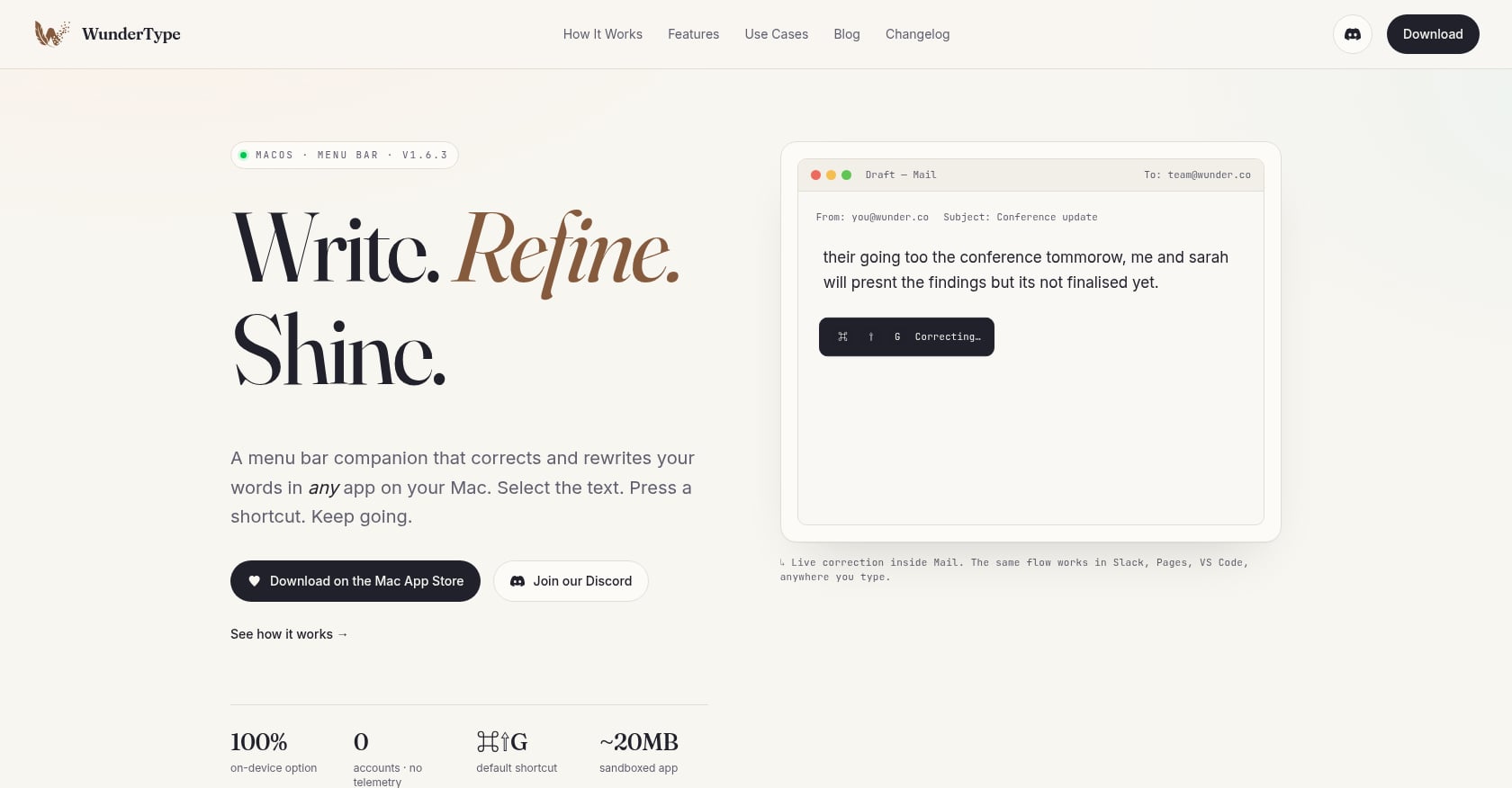
Select text, press ⌘⇧G, and WunderType corrects grammar and improves clarity in place. That’s about it.
Pricing: $8.99 one-time purchase on the Mac App Store.
Key features:
System-wide, works in any app
One keyboard shortcut
No subscription, pay once
Tradeoffs:
No translation, no dictation, no tone presets
Limited feature set compared to everything else on this list
Minimal public documentation or community feedback
How to Get the Best Results When Polishing Email Text with AI
Having the right tool is half the equation. How you use it matters just as much.
Draft first, polish second
Write your rough thoughts without worrying about grammar or tone. Get the argument down, even if the wording is terrible. Then use your AI tool to clean it up. This “two-pass workflow” keeps you in control of the substance while letting AI handle the surface. If you dictate emails on Mac, this approach feels especially natural: speak freely, then polish the transcription.
One change per pass
Don’t ask a tool to simultaneously fix grammar, shorten the text, and change the tone to professional. Stack too many transformations and you’ll get output that barely resembles your original intent. Fix grammar first. Then adjust tone. Then trim length if needed.
Supervise tone presets
“Professional” might strip out a joke that carries your point. “Concise” might cut a detail the reader needs. As one Mac security analysis noted, Apple Intelligence can remove contextual information during rewrites. Always read the polished version before hitting send.
Keep your voice
The goal isn’t to sound like AI wrote your email. It’s to sound like a more polished version of yourself. If the rewritten text feels generic or robotic, undo and try a lighter touch. Tools that let you define custom rules (like Scraib) or apply specific tone shortcuts (like Syneli’s Right Command + Right Option for Professional) give you more control here than one-size-fits-all polish buttons.
For users who care about keeping data local, there’s a growing category of privacy-focused offline dictation tools that process everything on your Mac before any AI polishing step.
Picking the Right Tool for Your Workflow
The choice comes down to what you actually do every day.
If you just need basic polish and own an Apple Silicon Mac, TextPolisher is free and completely on-device. Hard to beat that.
If you live in Gmail with a Workspace account, Gmail Polish is already there, though the quality complaints from Reddit users should give you pause.
If you’re a non-native English speaker who needs writing improvement beyond grammar fixes, Scraib’s custom rules or Syneli’s professional-tone shortcut will serve you better than generic polishers.
If you dictate emails and then polish them, Syneli is the only tool on this list that combines local dictation with in-place text rewriting and translation in a single app. Speak your rough draft, hit a shortcut, and send a clean email.
If budget matters most, PolishText.io at $0.99/month or WunderType at $8.99 one-time are the cheapest paths to system-wide AI polish on Mac.
Try Syneli free to see how the dictate-then-polish workflow compares to your current process.
FAQ
Does Apple Intelligence work for polishing email text on Mac?
Yes, but with limitations. Apple Intelligence Writing Tools let you rewrite selected text in Friendly, Professional, or Concise tones inside Apple Mail and other native apps. However, it requires an Apple Silicon Mac, has no dedicated keyboard shortcut (you must right-click), and can sometimes remove important context during rewrites.
Can I polish email text in Gmail on a Mac?
Only if you have a Google Workspace account with the Gemini Business, Enterprise, or Education add-on. Gmail’s Polish feature works inside the compose window and triggers on drafts longer than 12 words. Personal Gmail accounts don’t get this feature.
What’s the fastest way to polish selected email text on Mac with AI?
The fastest workflow is a single keyboard shortcut that rewrites text in place. Tools like Syneli (Right Command), TextPolisher (custom shortcut), Scraib (Control+R), and PolishText.io (⌘⇧Space) all let you highlight text and polish it without leaving your app. The ChatGPT copy-paste method is the slowest by a wide margin.
Can I dictate an email and then polish it with one tool?
Syneli is the primary option for this workflow on Mac. You dictate directly into any text field using local on-device speech recognition, then use a separate shortcut to polish or professionalize the transcribed text. Wordwand also offers dictation plus rewriting, though at a higher monthly price. Most other tools on this list handle only the polish step.
Are these AI polish tools safe for sensitive emails?
It depends on the tool’s privacy model. TextPolisher and Apple Intelligence process everything on-device, so your text never leaves your Mac. Syneli’s core dictation runs locally, with cloud processing only for translation and styling. Scraib and RewordIt let you bring your own API key or run locally via Ollama. Browser-based tools like Clico send text to external servers. If you handle confidential information, choose a tool with on-device or BYOK processing.
Do I need to pay for Grammarly when these tools exist?
Not necessarily. Grammarly’s paid plans start around $12/month (annual) or roughly $30/month on a monthly plan, and it’s primarily browser-focused. Several tools on this list offer system-wide Mac polishing at a fraction of the cost, or for free. Syneli’s free tier includes 10 AI actions per day, and TextPolisher is entirely free on Apple Silicon. The comparison with Grammarly alternatives covers this in more detail.
Will AI polish tools change the meaning of my email?
They can. Tone presets sometimes remove nuance: a “Professional” rewrite might strip casual phrasing that actually carried your point, and a “Concise” rewrite might drop details the recipient needs. Always review the output before sending. The safest approach is to make one type of change per pass rather than stacking grammar fixes, tone shifts, and length adjustments in a single action.
Which tool is best for multilingual email writers?
Syneli stands out for multilingual workflows because it translates selected text in place using a dedicated shortcut (Right Option) and can translate dictated speech before insertion. RewordIt supports translation through custom prompt profiles, and Wordwand and RewriteBar include built-in translation features. Most other polish tools on this list don’t handle translation at all.